D&R MambaNet
Use the MambaNet Control plugin for D&R MambaNet-based studio integration.
The installer includes the MambaNet control plugin and required bridge/support files.
Configure
Before enabling it, collect the station's MambaNet network settings and control mapping. Test the integration with the mixer or control system in a maintenance window.
Configure The Power Studio Plugin
Open Options and Settings and enable the D&R MambaNet Control plugin.
Select how Power Studio connects to the AXUM/AXITE engine:
| Connection | Use when | Notes |
|---|---|---|
| UDP/IP | Recommended for normal AXUM/AXITE installations. | Enter the AXUM/AXITE host name or IP address and the MambaNet UDP port. The default port is 34848. |
| TCP/IP | Not available for communication with AXUM/AXITE | |
| Ethernet | Use only when the station deliberately uses MambaNet Layer 2 Ethernet communication. | NPcap must be installed first, and it must be installed in WinPcap-compatible mode. Select the Ethernet interface that is connected to the D&R network. |
UDP/IP is recommended. TCP/IP is currently not available for AXUM/AXITE MambaNet control in the Power Studio configuration screen.
Set the Unique ID for the Power Studio MambaNet node. Keep this value unique on the MambaNet network.
If the station uses a supported D&R control module, configure Control module and Control module address:
- Select the correct control module type, for example Axite Control Panel.
- Enter the MambaNet address of that control module in Control module address.
- Keep the address aligned with the address configured in the D&R AXUM/AXITE project.
- Do not leave the address at
0when a control module is used. Power Studio only activates control-module command and feedback handling when a valid address is configured.
The control module address is used to recognize messages from the D&R module and to send LED or status feedback back to that same module. If the address does not match the D&R configuration, button commands may be ignored and feedback indicators may not update.
The feedback options control which Power Studio states are sent back to the control module. Enable only the feedback that is used by the station's surface configuration, such as player state, next-player state or cart-player state.
Configure The AXUM/AXITE MambaNet mapping
In the D&R configuration, add or configure the Power Studio node in the surface object configuration for the console or surface that will control Power Studio.
The exact menu path depends on the D&R system and project, but a typical AXUM/AXITE configuration is:
- Open the D&R configuration for the console or surface.
- Open Surface configuration.
- Select the node or object group named Power Studio.
- Assign the Power Studio functions to the D&R local functions, buttons, logic objects or user levels used by the studio.
- Store the D&R configuration and test the mapping from the actual surface.
Use this object configuration as a reference when setting up the Surface configuration in the AXUM/AXITE settings:
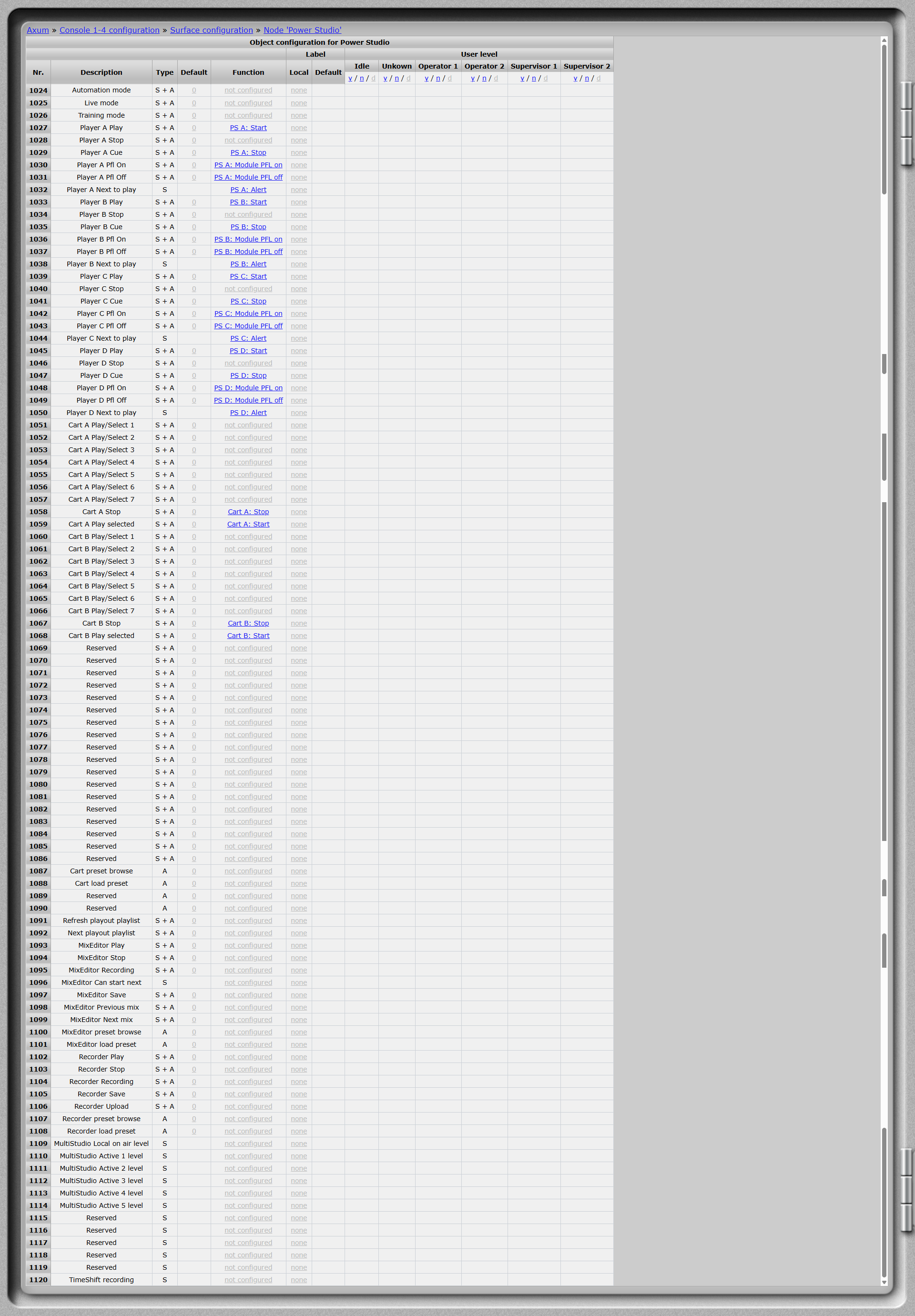
The configuration contains Power Studio objects for:
- Playout mode selection, including Automation mode, Live mode and Training mode.
- Player A-D control, including play, stop, cue, Playout Player PFL on/off and next-to-play signals.
- Cart player control, including cart selection, stop and play selected cart.
- Playlist control, including refreshing the playout playlist and selecting the next playout playlist.
- Mix Editor control, including play, stop, recording state, save and preset actions.
- Recorder control, including play, stop, recording state, save, upload and preset actions.
- Multi-Studio status, including local on-air level and active studio levels.
- TimeShift recording.
Only configure the objects that are used in the station's workflow. Leave unused or reserved objects unassigned. After changing the D&R configuration, test the complete path: surface button or logic action, MambaNet communication, Power Studio response and any indicator or feedback shown on the surface.